 lbjoseph
Jul 11, 2011
lbjoseph
Jul 11, 2011
gx Graphics Library Center -  lbjoseph
The gx Graphics Library, or gxGL, is a 2D memory drawing library based off of the Win32 GDI libraries. Table of Contents
The functionality offered by gxGL allows you to draw in memory almost exactly as you would in a Liberty BASIC graphicbox. The commands are slightly different, but allow for more functionality.
gxGL makes it very easy to create smooth, flicker free animations.
Below you will find documentation for gxGL.
Getting gxGL
gxGL code page and usage instructions.Setting Up gxGL
It's easy to get started using gxGL. First, you'll have to put the header structures and variables at the top of your program. These are used by gxGL to keep track of your memory drawings.After that, all you need to do is tell gxGL how big of a canvas you want to draw on.
Call gx.InitMemoryDrawing CanvasWidth, CanvasHeightThis tells gxGL to allocate the properly sized surface available so you can begin drawing on it.
Closing gxGL
When your program ends, you need to tell gxGL to clean up after itself. This too is very simple:Call gx.FinishOnce you do this, gxGL deletes all the memory drawings and closes the handles to the resources it needs.
Colors
Colors in gxGL are exactly like the colors in Liberty BASIC commands. You can use one of the 16 colors recognized by LB, or any color in a "R G B" string format. You can even use the "buttonface" color.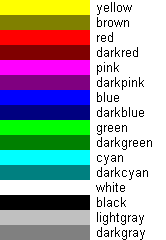
Graphics Concepts
Commands are issued to gxGL with a simple subroutine call:Call gx.Draw "cls; fill blue"Commands are separated by a semi-colon, and you can put as many commands in a string as you like. Commands are case-insensitive, which means it doesn't matter if they're uppercase or lowercase.
The Pen
The "pen" in gxGL is used to draw the outlines of shapes. The pen has three properties: width, style, and color.| PENWIDTH widthPx | Sets the width of the pen in pixels to be the following number. |
| PENCOLOR color | Sets the color to be the color name specified or the following "R G B" string. |
| PENSTYLE styleName | Sets the style of the pen to be one of the styles listed in the following table. |
| normal | The default setting. This is a solid pen. |
| solid | Same as normal. |
| none | The pen is invisible. This allows filled shapes to be drawn without an outline. |
| insideframe | This is a solid pen that stays within the boundaries of the shape drawn. |
| dash | This is a dashed pen. |
| dot | This is a dotted pen. |
| dashdot | This pen follows a dash-dot pattern. |
| dashdotdot | This pen follows a dash-dot-dot pattern. |
The following pen styles only work when the PENWIDTH is 1 px: dash , dot , dashdot , and dashdotdot .
The Brush
The "brush" in gxGL is used to create filled shapes. The brush is very flexible and can fill shapes in various patterns, much like how the pen can make dashed outlines. The brush is affected by the FILLCOLOR, BRUSHSTYLE, and STYLECOLOR.| FILLCOLOR color; | The fill color determines what color a solid shape is filled. |
| STYLECOLOR color ; | The style color determines the other color used in brush patterns and pen dashes. You can optionally turn the secondary color off by issuing a "stylecolor none;" statement. |
| BRUSHSTYLE style; | This specifies the pattern that the brush will have. This can be any style listed in the following table. |
| normal | This is the default style. The brush fills with the solid color specified with the FILLCOLOR command. |
| solid | Same as normal. |
| none | The brush is invisible. Use this style to draw shapes with only an outline. |
| vertical | The brush fills with a vertical line pattern. |
| horizontal | The brush fills with a horizontal line pattern. |
| cross | The brush fills with a cross pattern. |
| 45 | The brush fills with a 45° diagonal-cross line pattern. |
| 45down | The brush fills with a 45° line downward pattern. |
| 45up | The brush fills with a 45° line upward pattern. |
A Basic Example
Below is a short example that demonstrates a few basic pen techniques. It sets the BRUSHSTYLE to none so that shapes are not filled.[Demo1]
NoMainWin
WindowWidth = 640
WindowHeight = 480
UpperLeftX = Int((DisplayWidth-WindowWidth)/2)
UpperLeftY = Int((DisplayHeight-WindowHeight)/2)
Open "gx Graphics Demo" For Graphics_NF_NSB As #win
#win "TrapClose [Quit]"
#win "CLS; Down; Fill White; Flush;"
' Must be called first. You can set the dimensions to be as big as you like.
' I won't need to draw anything bigger than the size of the window, however.
Call gx.InitMemoryDrawing 640, 480
centerX = Int(640/2) : centerY = Int(480/2)
st = 4
Call gx.Draw "cls; fill 0 0 0"
' Let's draw some red and blue circle outlines:
Call gx.Draw "penstyle dot; penwidth 1; pencolor blue; stylecolor red; brushstyle none;"
For i = 1 To 100 Step st
a = i*st
Call gx.Draw "ellipse ";centerX-a;" ";centerY-a;" ";a*2;" ";a*2
Next i
' Now, let's show the graphics on screen:
' (destination loc.) (source area start) (source area width and height)
Call gx.RenderTo hWnd(#win), 0,0, 0,0, 640,480
Wait
[Quit]
Call gx.Finish
Close #win
End
Graphics Commands
CLS
The CLS command clears the drawing and fills it white.FILL color
The FILL command fills the entire memory drawing with the specified color.FILLAT x y
The FILLAT command fills the surrounding area of (x,y) with the FILLCOLOR until it reaches a color that wasn't the color of the pixel at (x,y).Think of this is as the paint dipper in your favorite raster graphics application.
PENCOLOR color
The PENCOLOR command sets the color of the pen (for outlines) to be the specified color. As with all colors, it can be a single Liberty BASIC color name, orFor example: "pencolor blue; pencolor 42 100 232".
PENWIDTH width
The PENWIDTH command sets the width of the pen (in pixels) to be the following number. For example "penwidth 4" will give the pen a thickness of 4px.PENSTYLE style
The pen style specifies what kind of pen to use. The following table lists the styles available:The following pen styles only work when the PENWIDTH is 1 px: dash , dot , dashdot , and dashdotdot .
The pen style can be used to make decorative pens, solid pens, or make the pen completely invisible.